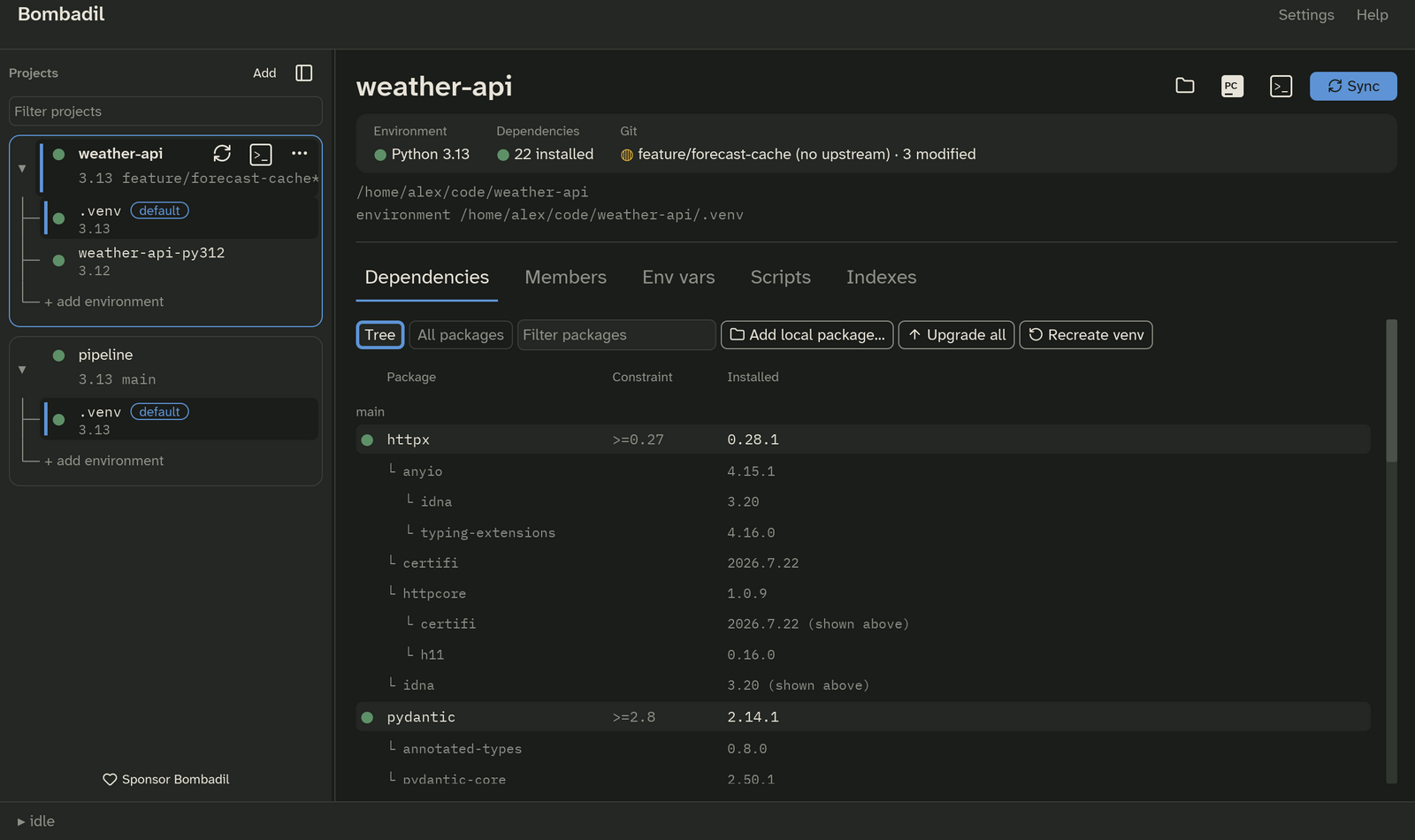
The main window
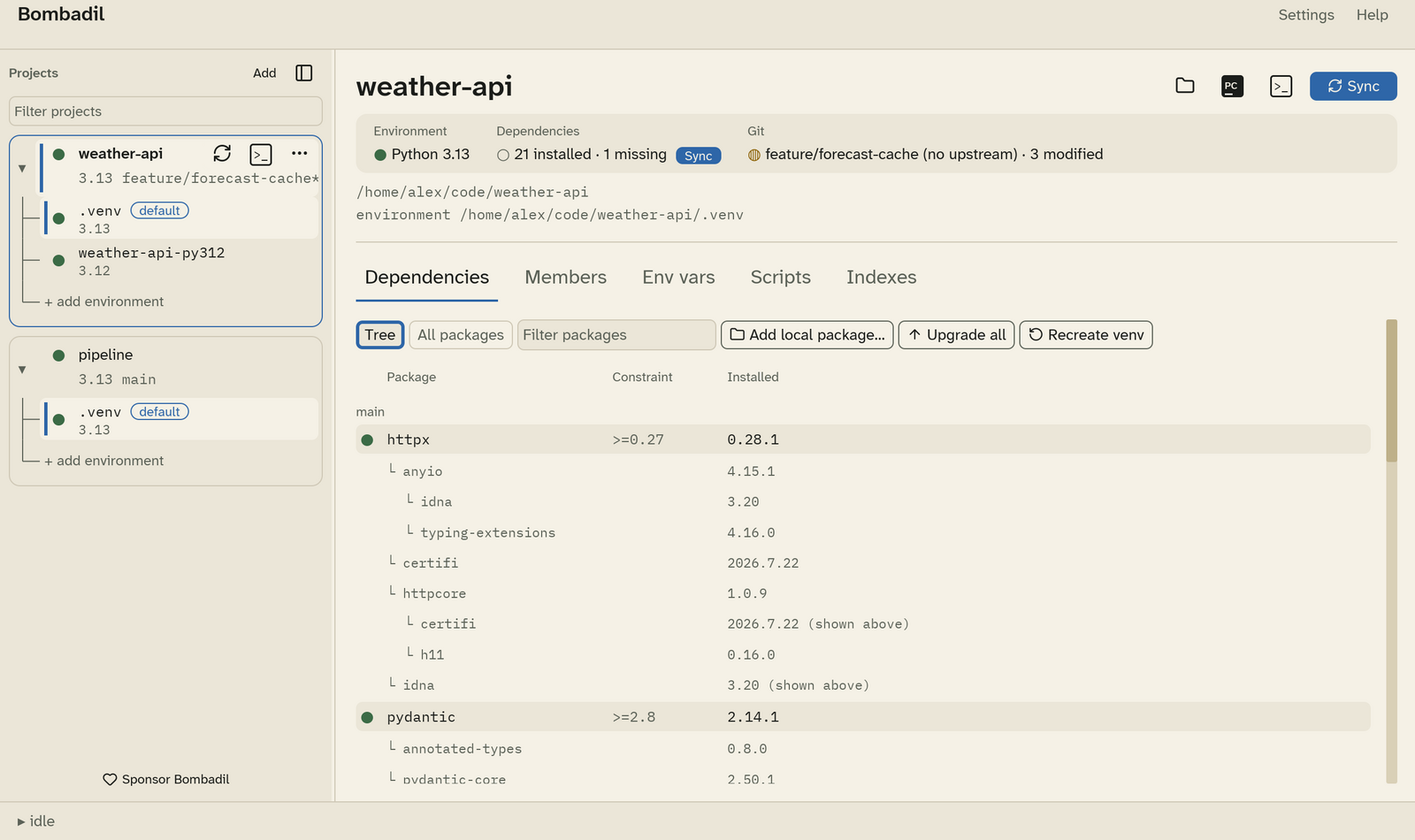
The window has four parts: the menu bar at the top, the sidebar on the left, the project view on the right, and the drawer along the bottom.
Menu bar
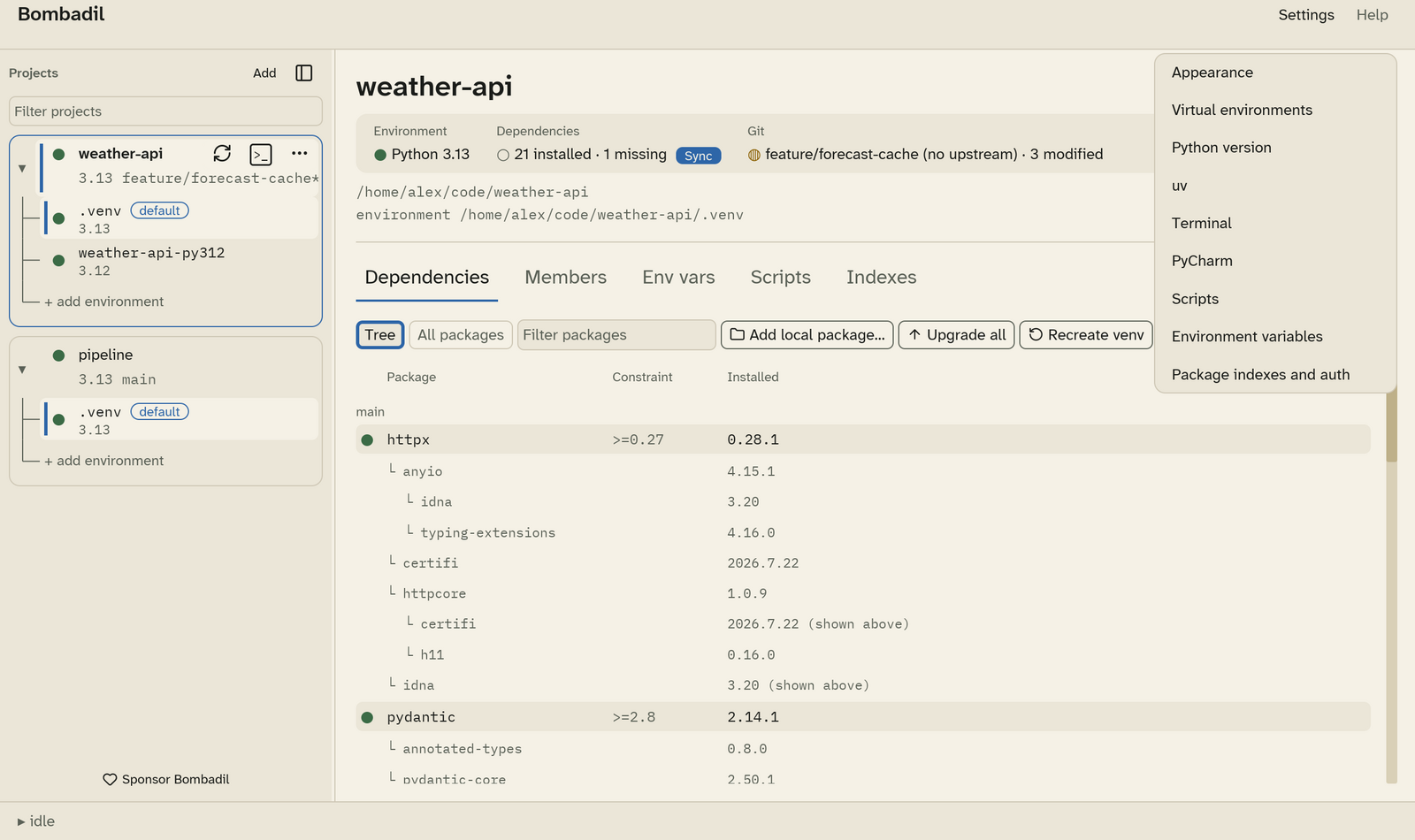
- Settings opens Preferences at any of its sections.
- Help has Keyboard shortcuts, About Bombadil and Bundled licences.
Sidebar
The sidebar lists your projects. Each project is a card. Its first line shows
the status mark and name. The second line shows the Python version and the Git
branch, with a * when the working tree has changes.
- Filter projects narrows the list as you type.
- Add adds a project.
- The panel button next to Add collapses the sidebar. The shortcut is Ctrl+B. Drag the sidebar's edge to resize it.
- Hover a project to show its Sync, terminal and ⋯ buttons.
- ⋯, or right-clicking the project, opens the project menu.
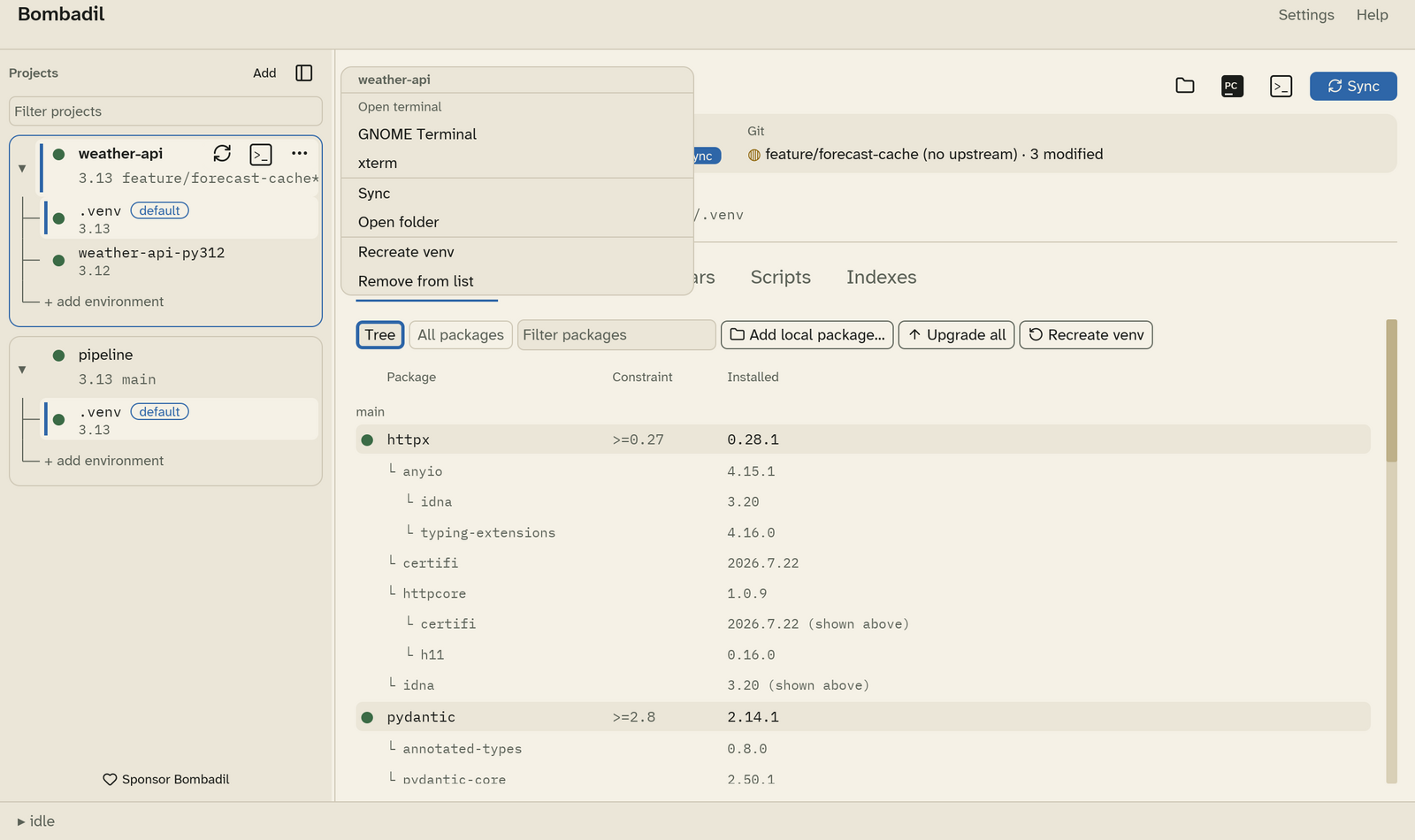
The project menu has these items:
- Open terminal lists every terminal Bombadil knows on your OS.
- Sync
- Open folder
- Recreate venv deletes the environment and builds it again. It asks first.
- Remove from list removes the project from Bombadil. Nothing on disk is touched.
Environments
Click the triangle next to a project to show or hide its environments. Each environment row shows the folder name and the Python version. The default environment is marked default.
- Click an environment to make it the default. Sync, the terminal, PyCharm and the Dependencies tab all act on the default environment.
- The trash button at the end of an environment row removes it from the project, after asking. Right-clicking the row does the same. The folder stays on disk. You can remove a project's last environment too. The project then shows only its folder and an Add environment button, since Sync, the terminal, PyCharm and the tabs all need an environment.
- + add environment asks for a folder and adds it as another environment of the project. Use this to keep, for example, a Python 3.12 environment next to a 3.13 one. You can also point at an environment that another project already uses.
- To set an environment's location or Python version, go to Settings › Environments and pick the project's scope.
Project view
The project view has a header with the project's name, action buttons and status tiles. Below that are the path of the project and of its default environment, then five tabs. You can drag the tabs to reorder them.
| Tab | What it is for |
|---|---|
| Dependencies | What is declared against what is installed. |
| Members | Workspace members to install as editable packages. |
| Env vars | The project's environment variables and secrets. |
| Scripts | Shell scripts to run before the environment is used. |
| Indexes | Which private package indexes this project uses. |
Drawer
The bar at the bottom shows what Bombadil is doing (idle when nothing is running). Click it to open the drawer, which shows the output of the latest uv command. It follows new output as it arrives, unless you scroll up.
- Copy puts the whole output on the clipboard.
- Export… asks where to save it and writes it to a text file.
Secrets from your environment variables are hidden in the drawer, so they are also hidden in what you copy or export.
Notifications
Short messages, such as "Synced weather-api" or an error, appear as toasts and go away on their own. When something fails, the full output stays in the drawer.
Light and dark
Bombadil follows your desktop's light or dark setting. You can also choose one in Settings › Appearance.