Getting started
This walks through adding a project, syncing it, and opening it.
1. Add a project
Click Add at the top of the sidebar, or press Ctrl+N
(Cmd+N on macOS), and choose a folder. Bombadil looks for
pyproject.toml in that folder and its subfolders:
- If it finds one, the Add project dialog opens.
- If it finds several, as in a monorepo, it lists them so you can pick one.
- If every project it finds is already in Bombadil, it says so.
You can also drag a folder or a pyproject.toml onto the window.
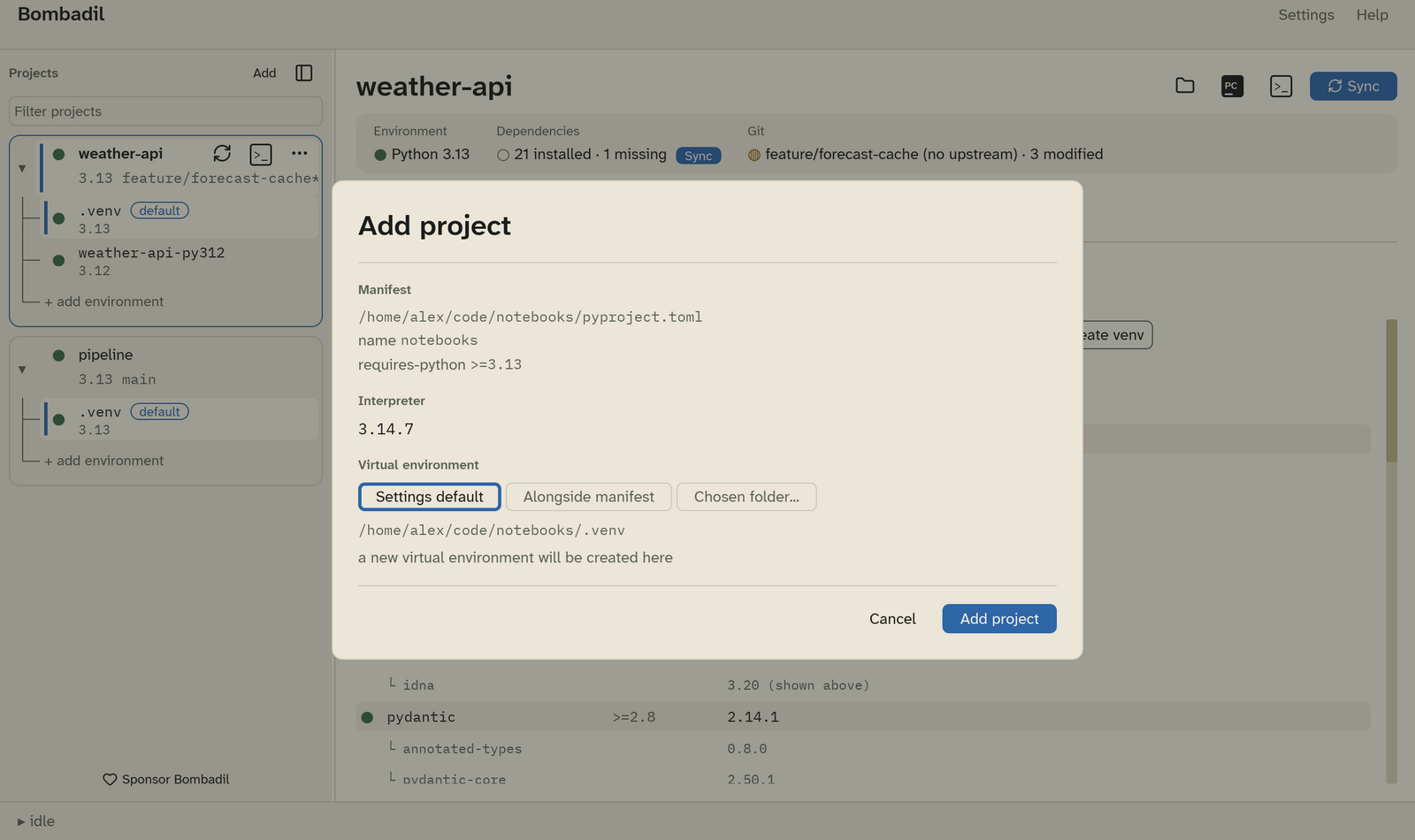
The dialog shows:
- Manifest: the
pyproject.toml, the project name, and itsrequires-python. - Interpreter: the installed Python that the new environment will use. If
no installed Python satisfies
requires-python, the dialog offers to install one with uv. - Virtual environment: where the environment lives.
- Settings default follows the global setting (see Settings › Environments).
- Alongside manifest uses
<project>/.venv. - Chosen folder… uses any folder you pick.
The line under the choices tells you what happens next. Either a new environment will be created, or an existing one will be adopted as it is.
Click Add project. Bombadil saves the project and runs its first
uv sync.
2. Read the overview
Select the project in the sidebar. The header shows three tiles:
| Tile | Shows |
|---|---|
| Environment | The Python version of the default environment. |
| Dependencies | How many packages are installed and how many are missing. A Sync badge appears when a sync would change something. |
| Git | The branch, its upstream, and how many files are modified. |
Each status uses the same three marks everywhere in the app:
| Mark | Meaning |
|---|---|
| ● | Present. It exists and matches what was asked for. |
| ○ | Absent. Declared, but not installed. |
| ◍ | Drifted. Installed, but not what was asked for. |
3. Sync
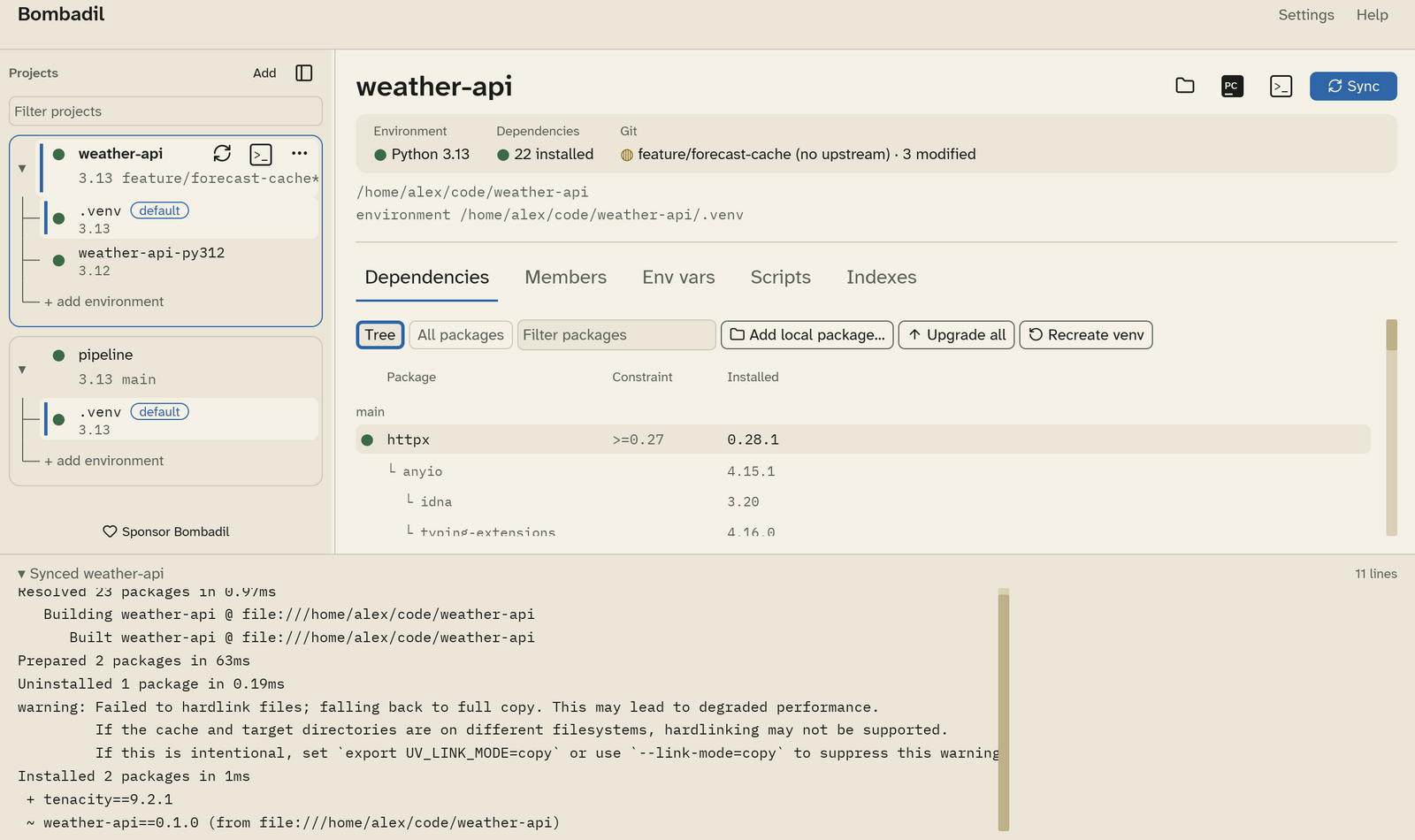
Click Sync, or press Ctrl+Enter. Bombadil runs uv sync on the
project's default environment and streams the output into the drawer at the
bottom of the window.
4. Open it
The buttons at the top right of a project are, from left to right:
- Folder: opens the project folder in your file manager.
- PC: opens the project in PyCharm, with the environment set as its interpreter. See Terminals and PyCharm.
- >_: opens a terminal in the project folder with the environment activated. The shortcut is Ctrl+T.
- Sync: runs
uv sync, as in step 3.
Next steps
- Give a project more than one environment.
- Add environment variables and secrets.
- Look through Settings.